7443 → To communicate with the ArcGIS Enterprise portal
2 Install & Config ArcGIS Notebook Server
2.1 Install Notebook server pada mesin DEV20
Extract installer ArcGIS Notebook Server
tar -xzvf ArcGIS_Notebook_Server_Linux_12.tar.gz
Jalankan Setup Installer
Masuk ke direktori tempat file installer Notebook server diextract
cd /home/notebooksvr/Documents/NotebookServer_Linux
.\Setup
Service Notebook Server akan stop otomatis
Versi 11.4 akan uninstall otomatis
Sistem langsung install versi 12 (in-place upgrade)
Authorize software
cd /home/notebooksvr/arcgis/notebookserver/tools
./authorizeSoftware
Akses halaman konfigurasi
Setalah authorize software berhasil akan terbuka web ui unutk melanjutkan upgrade, jika tidak terbuka dapat dibuka pada URL https://dev20.gisportal.id:11443/arcgis/configure
Ikuti step upgrade yang tertera pada Web UI
Di halaman configure:
Step 1: Download Docker image dari Esri
Step 2: Jalankan post install utility
./postInstallUtility.sh
Fungsi:
Load docker image
Setup container Notebook runtime
Konfigurasi environment
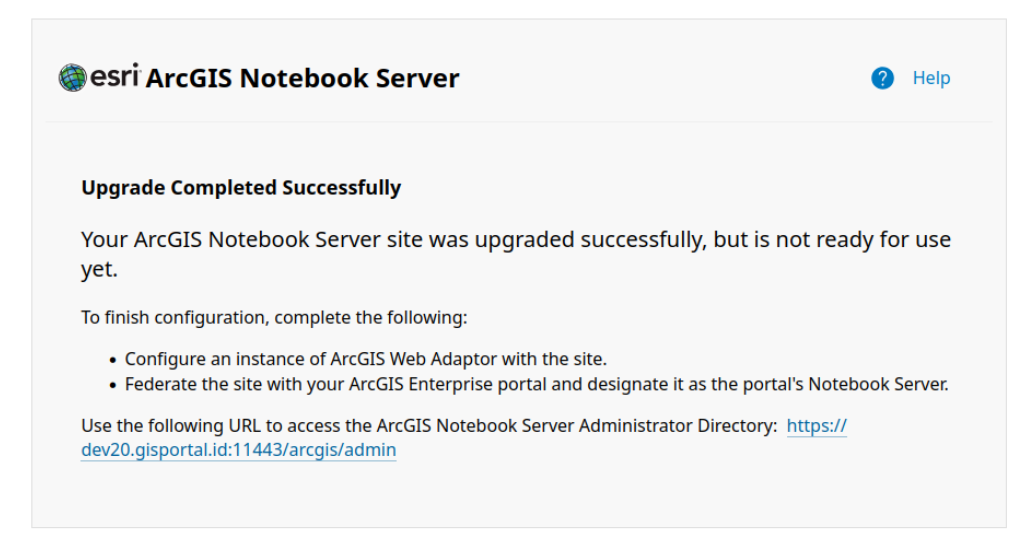
lanjutkan Upgrade
Kembali ke halaman /configure
Klik Next / Continue hingga selesai
3. Install dan config ArcGIS Webadaptor pada mesin DEV11 ArcGIS Enterprise
3.1 Install Webadaptor 12.0
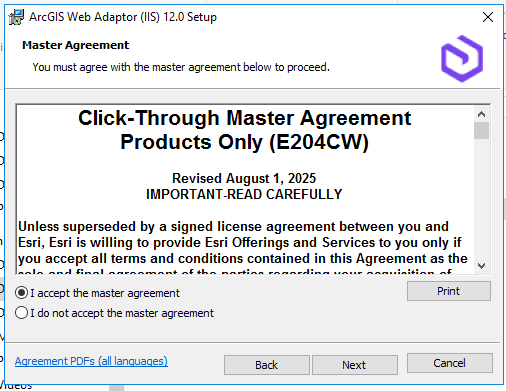
jalankan Installer
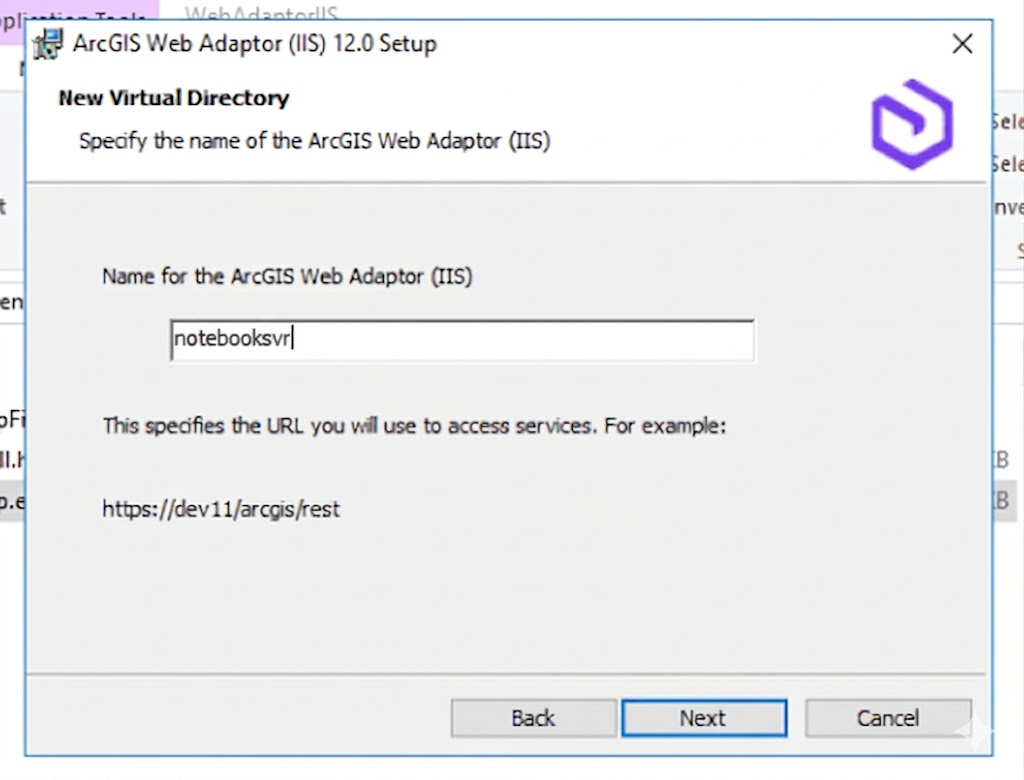
Tentukan Name for ArcGIS Webadaptor
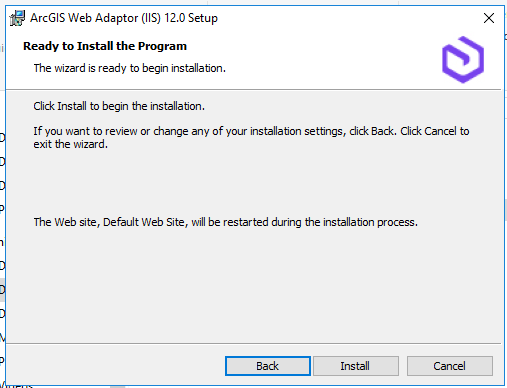
Install webadaptor
3.2 Config Notebook Server Webadaptor
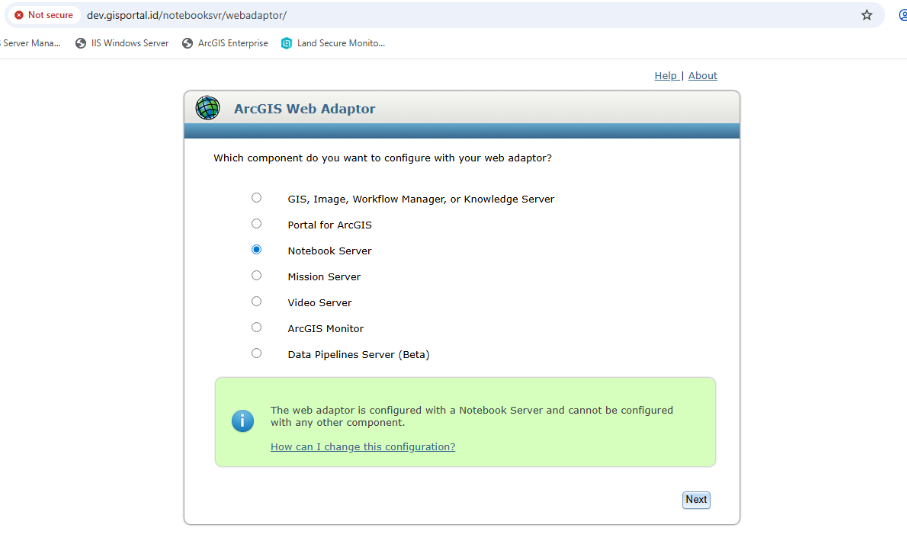
Pilih component
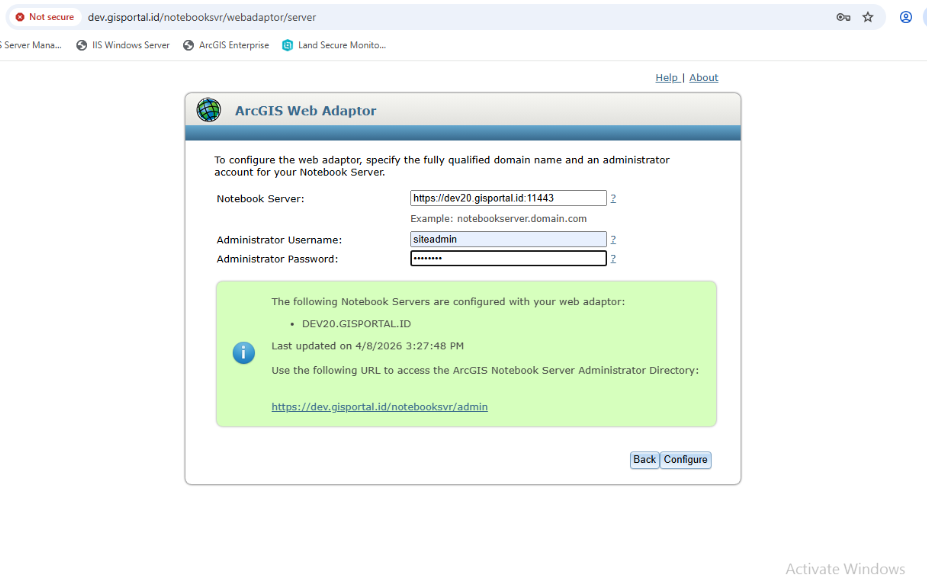
2.Config server dengan webadaptor. Input domain server dengan url internal atau hostname dev20.gisportal.id:11443 dan administartor account server arcgis yang sudah diconfig.
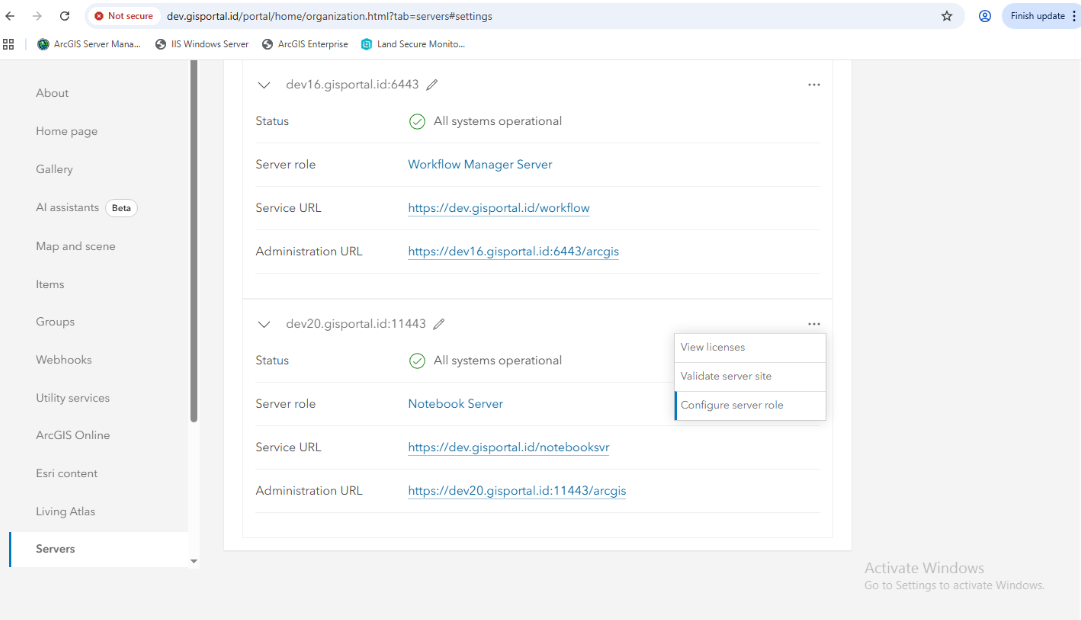
4. Validate & Config Server Role
Masuk ke:
Organization → Settings → Servers
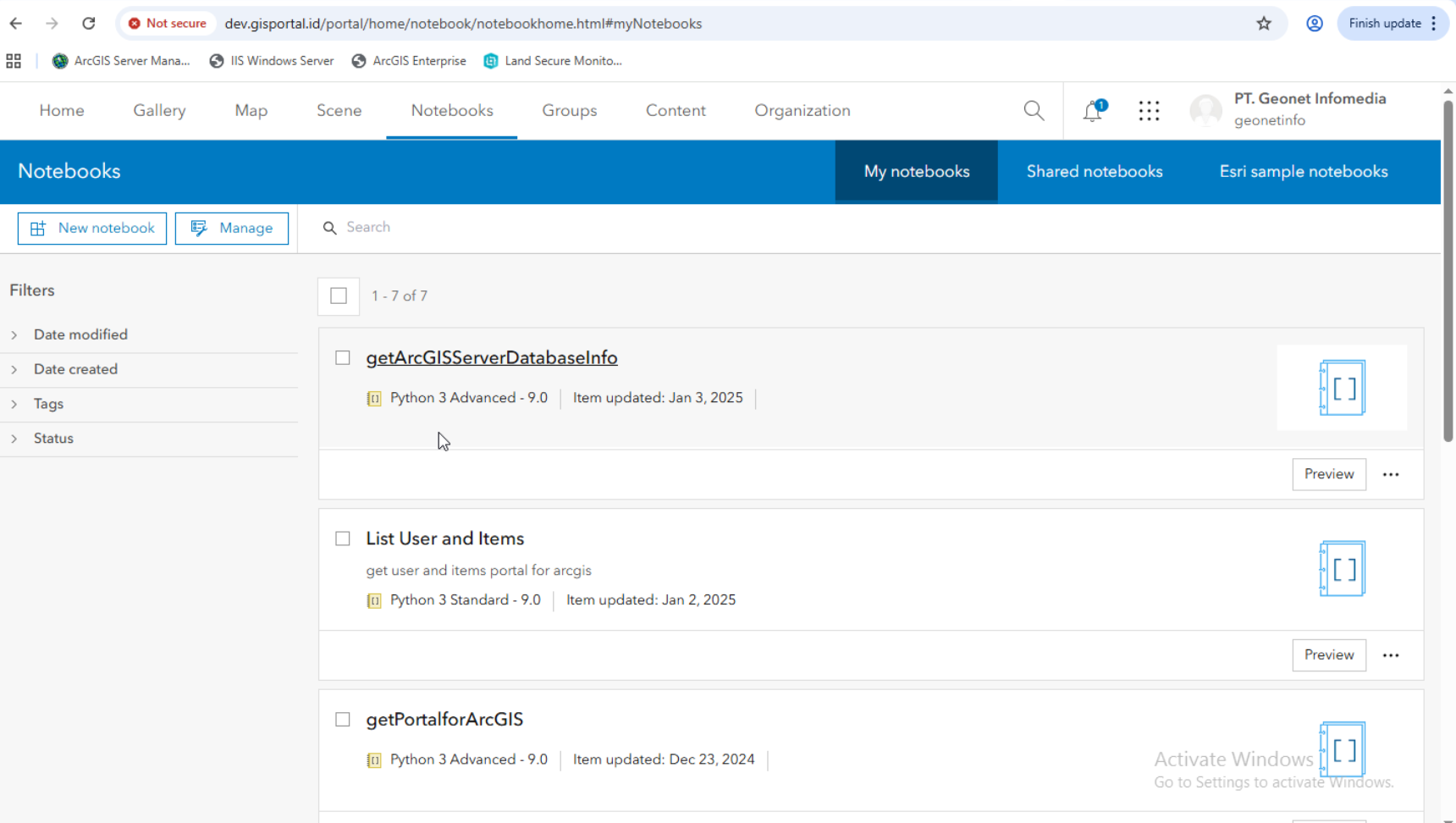
5. Implementasi Di Portal
# Upgrade ArcGIS Notebook Server 11.4 → 12 (Ubuntu)
*
## 1. Preparation
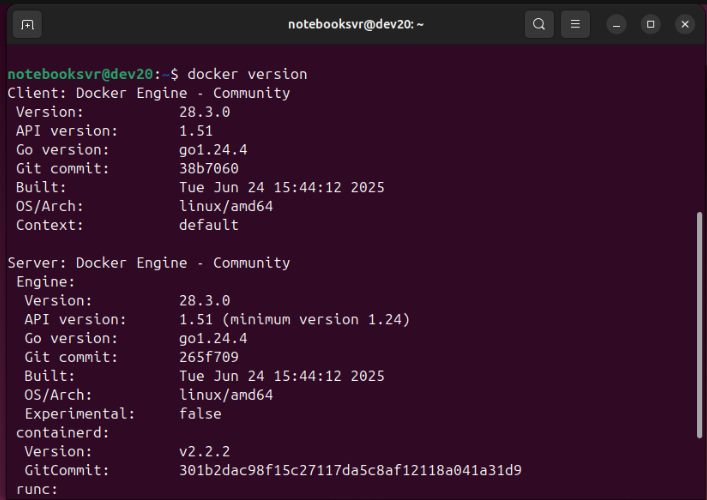
### 1.1 Cek versi Docker (WAJIB 28.3.0)
```
docker --version
```
Hasil:
### 1.2 OS
* Ubuntu Server LTS 24.04.2
* Ubuntu Server LTS 22.04.5
### 1.3 Firewall
Allow inbound TCP:
* 11443 → ArcGIS Notebook Server
* 7443 → To communicate with the ArcGIS Enterprise portal
## 2 Install & Config ArcGIS Notebook Server
### 2.1 Install Notebook server pada mesin DEV20
1. Extract installer ArcGIS Notebook Server
```
tar -xzvf ArcGIS_Notebook_Server_Linux_12.tar.gz
```
2. Jalankan Setup Installer
Masuk ke direktori tempat file installer Notebook server diextract
```
cd /home/notebooksvr/Documents/NotebookServer_Linux
```
```
.\Setup
```
* Service Notebook Server akan stop otomatis
* Versi 11.4 akan uninstall otomatis
* Sistem langsung install versi 12 (in-place upgrade)
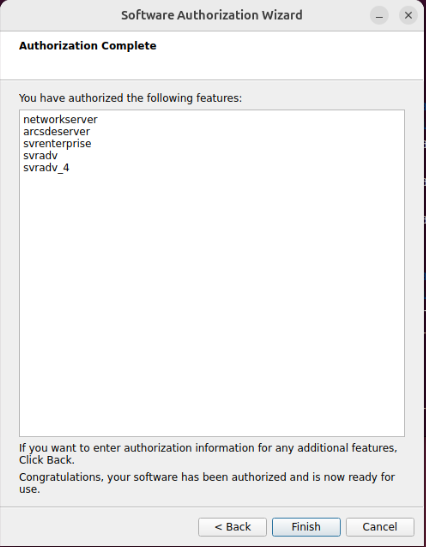
3. Authorize software
```
cd /home/notebooksvr/arcgis/notebookserver/tools
./authorizeSoftware
```
4. Akses halaman konfigurasi
Setalah authorize software berhasil akan terbuka web ui unutk melanjutkan upgrade, jika tidak terbuka dapat dibuka pada URL ``https://dev20.gisportal.id:11443/arcgis/configure``
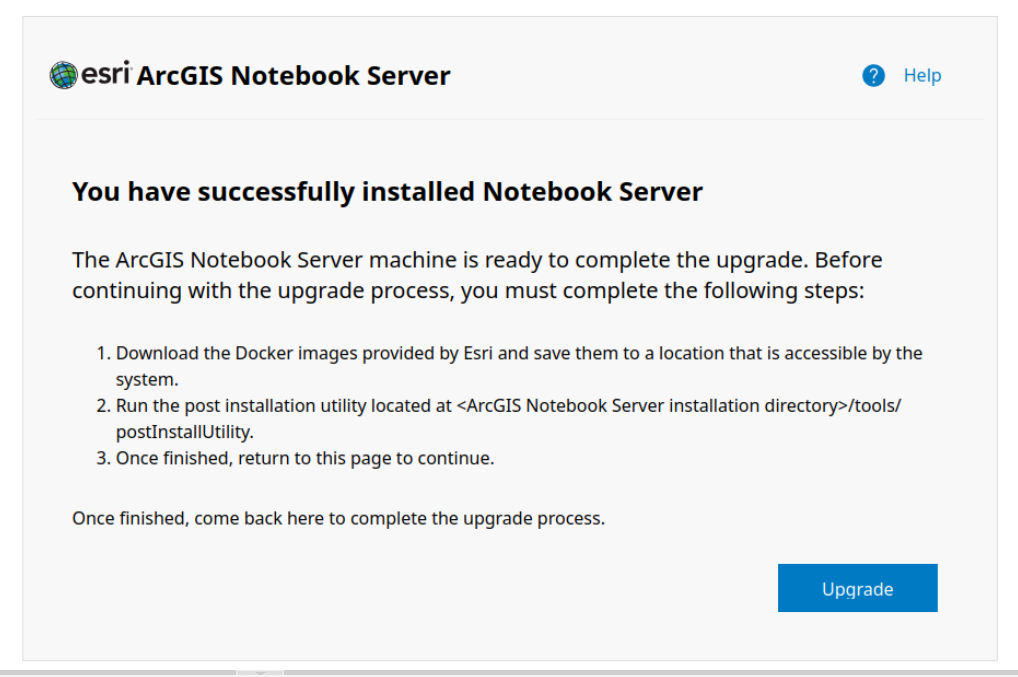
5. Ikuti step upgrade yang tertera pada Web UI
Di halaman configure:
* Step 1: Download Docker image dari Esri
* Step 2: Jalankan post install utility
```
./postInstallUtility.sh
```
Fungsi:
* Load docker image
* Setup container Notebook runtime
* Konfigurasi environment
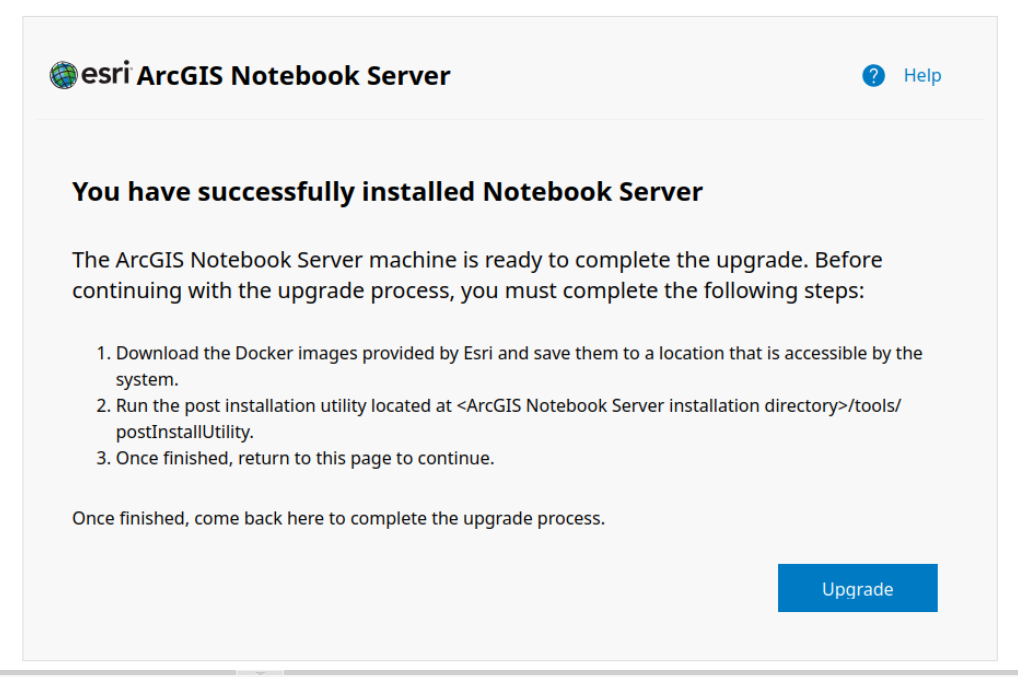
6. lanjutkan Upgrade
* Kembali ke halaman /configure
* Klik Next / Continue hingga selesai
## 3. Install dan config ArcGIS Webadaptor pada mesin DEV11 ArcGIS Enterprise
### 3.1 Install Webadaptor 12.0
1. jalankan Installer
2. Tentukan Name for ArcGIS Webadaptor
3. Install webadaptor
### 3.2 Config Notebook Server Webadaptor
1. Pilih component
2.Config server dengan webadaptor. Input domain server dengan url internal atau hostname dev20.gisportal.id:11443 dan administartor account server arcgis yang sudah diconfig.
## 4. Validate & Config Server Role
Masuk ke:
* Organization → Settings → Servers
## 5. Implementasi Di Portal


Upgrade ArcGIS Notebook Server 11.4 → 12 (Ubuntu)
Hasil:

1.2 OS
1.3 Firewall
Allow inbound TCP:
2 Install & Config ArcGIS Notebook Server
2.1 Install Notebook server pada mesin DEV20
Masuk ke direktori tempat file installer Notebook server diextract
Setalah authorize software berhasil akan terbuka web ui unutk melanjutkan upgrade, jika tidak terbuka dapat dibuka pada URL

https://dev20.gisportal.id:11443/arcgis/configureDi halaman configure:
Fungsi:
3. Install dan config ArcGIS Webadaptor pada mesin DEV11 ArcGIS Enterprise
3.1 Install Webadaptor 12.0
jalankan Installer

Tentukan Name for ArcGIS Webadaptor

Install webadaptor

3.2 Config Notebook Server Webadaptor
2.Config server dengan webadaptor. Input domain server dengan url internal atau hostname dev20.gisportal.id:11443 dan administartor account server arcgis yang sudah diconfig.

4. Validate & Config Server Role
Masuk ke:
5. Implementasi Di Portal